Now playing
LivePick your next book in one scroll.
Browse instantly. Unlock AI book insights only when you choose.
A quick, human guide
Skip to HomeWhat you can do in ReadImple (using the tab bar)
ReadImple is built for one thing: helping you decide what to read next without bouncing between apps. Use the bottom tab bar like a map—Home for your tuned feed, Discover for exploration, Scan for quick captures, Gallery for saved books, and Profile to keep your preferences in sync.
Start scrolling
Home and Discover are built for fast, calm browsing.
Save the good ones
Gallery keeps your shortlist tidy and easy to revisit.
Spend credits only on purpose
AI unlocks happen only when you tap to run them.
Home
Home
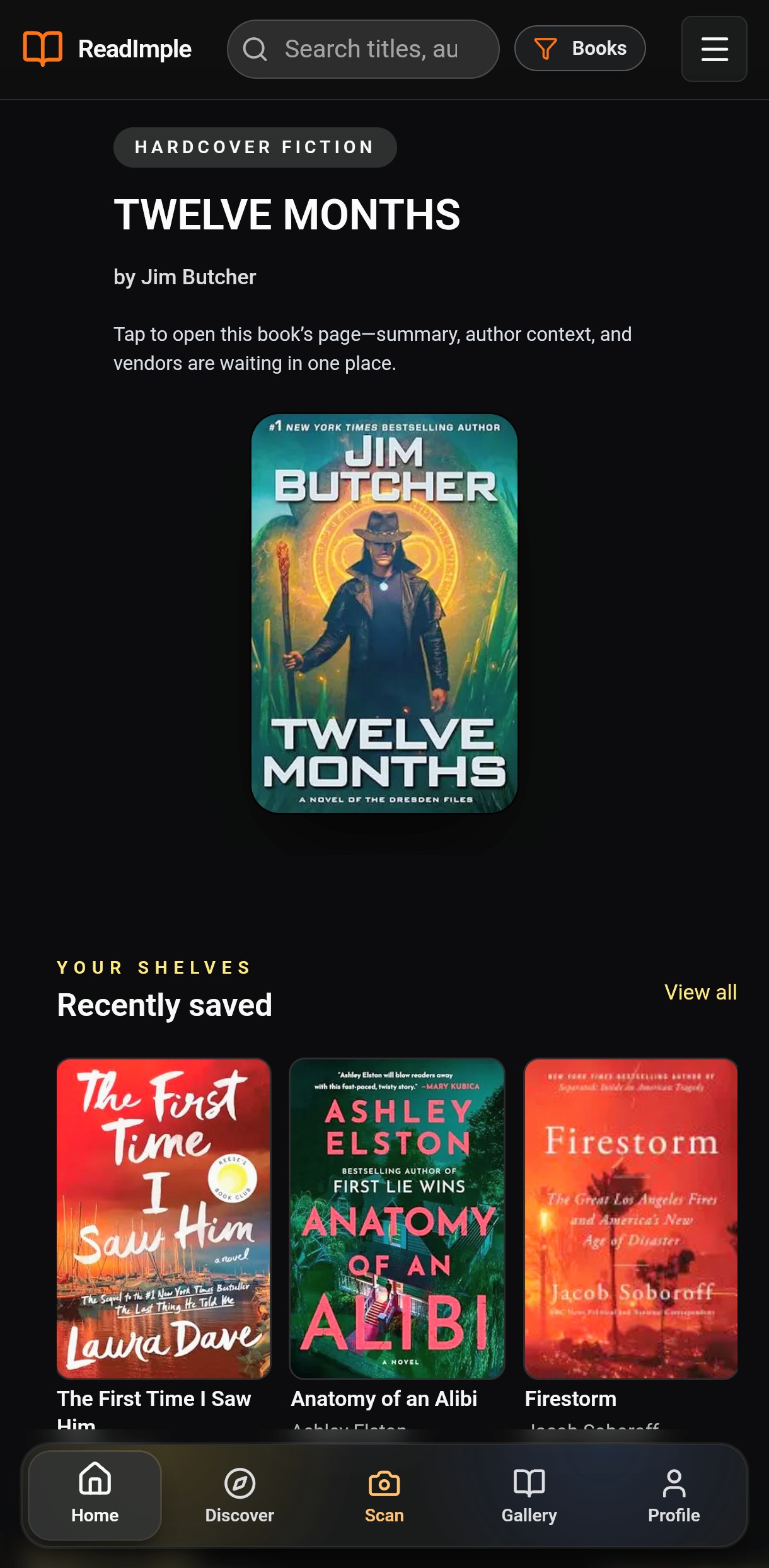
Your tuned feed: familiar rails that update as you explore and save.
- Swipe genre lanes
- Open a book page fast
- Jump to a vendor when you’re ready
Discover
Discover
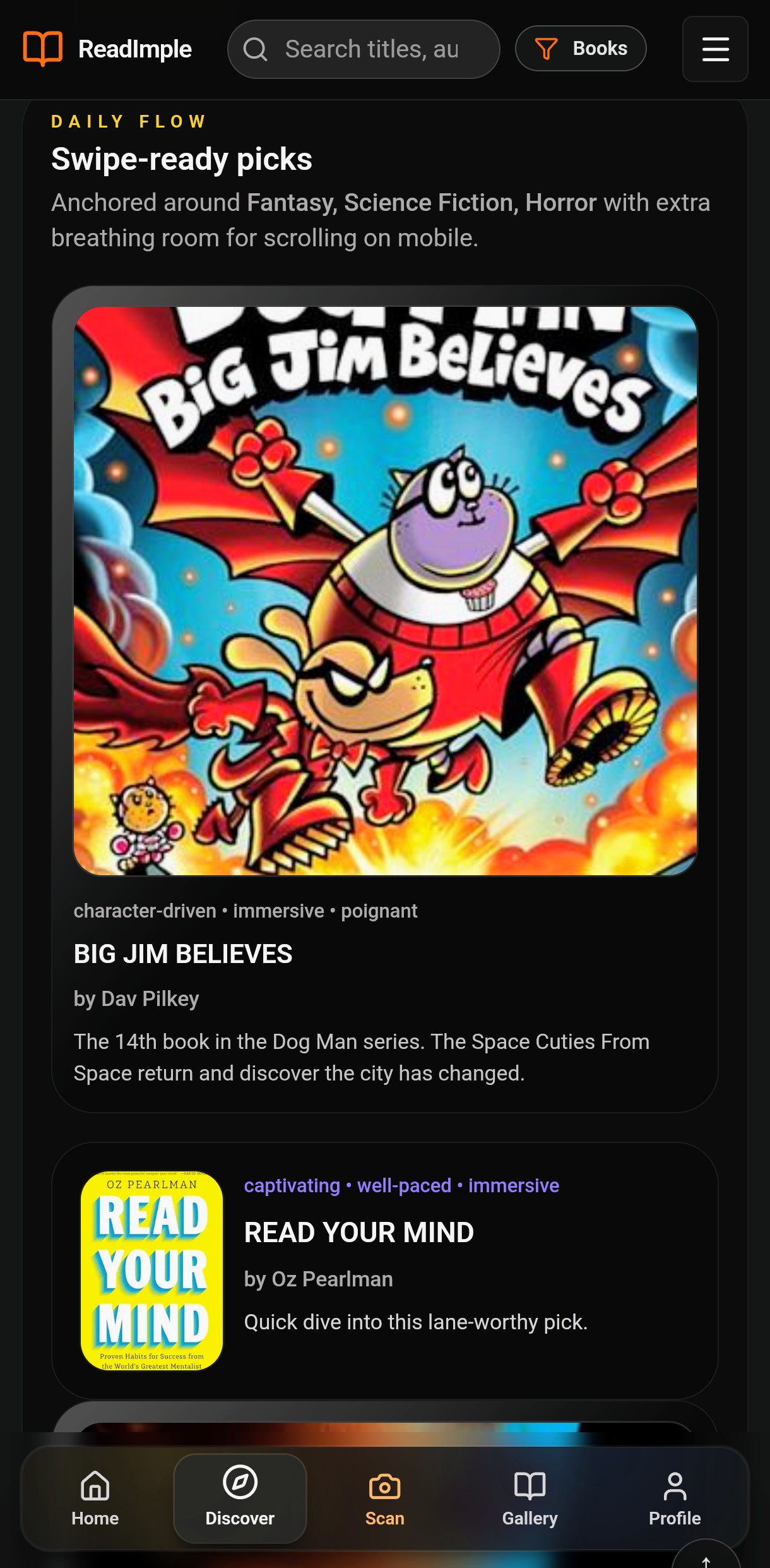
Wider exploration: new lanes, deeper themes, and serendipity without chaos.
- Find new authors and series
- Use filters and categories
- Save the good finds to Gallery
Scan
Scan
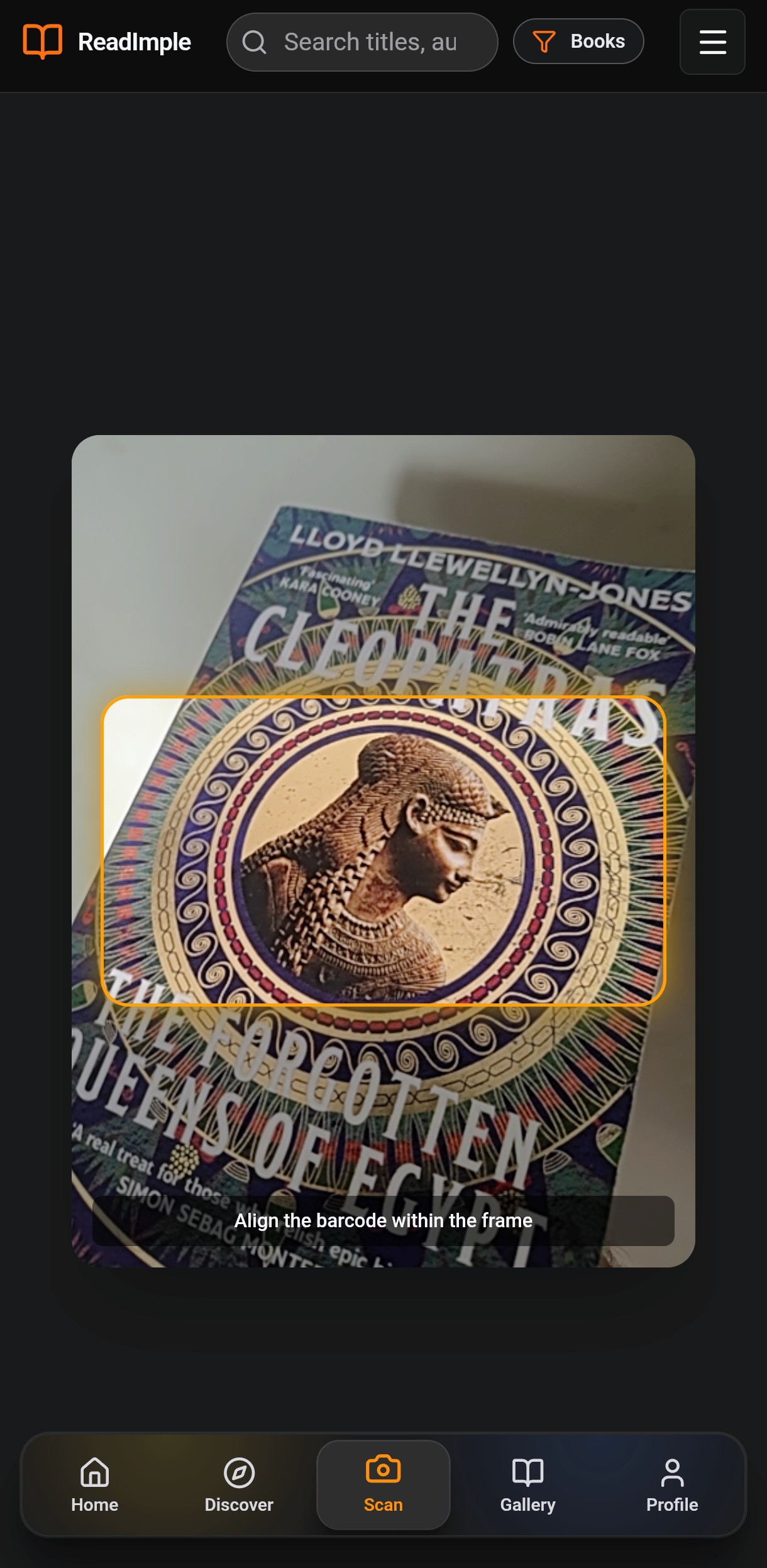
Point, scan, decide: capture a book from your shelf or a store in seconds.
- Scan a cover/ISBN
- Jump to the book page
- Save it with one tap
Gallery
Gallery
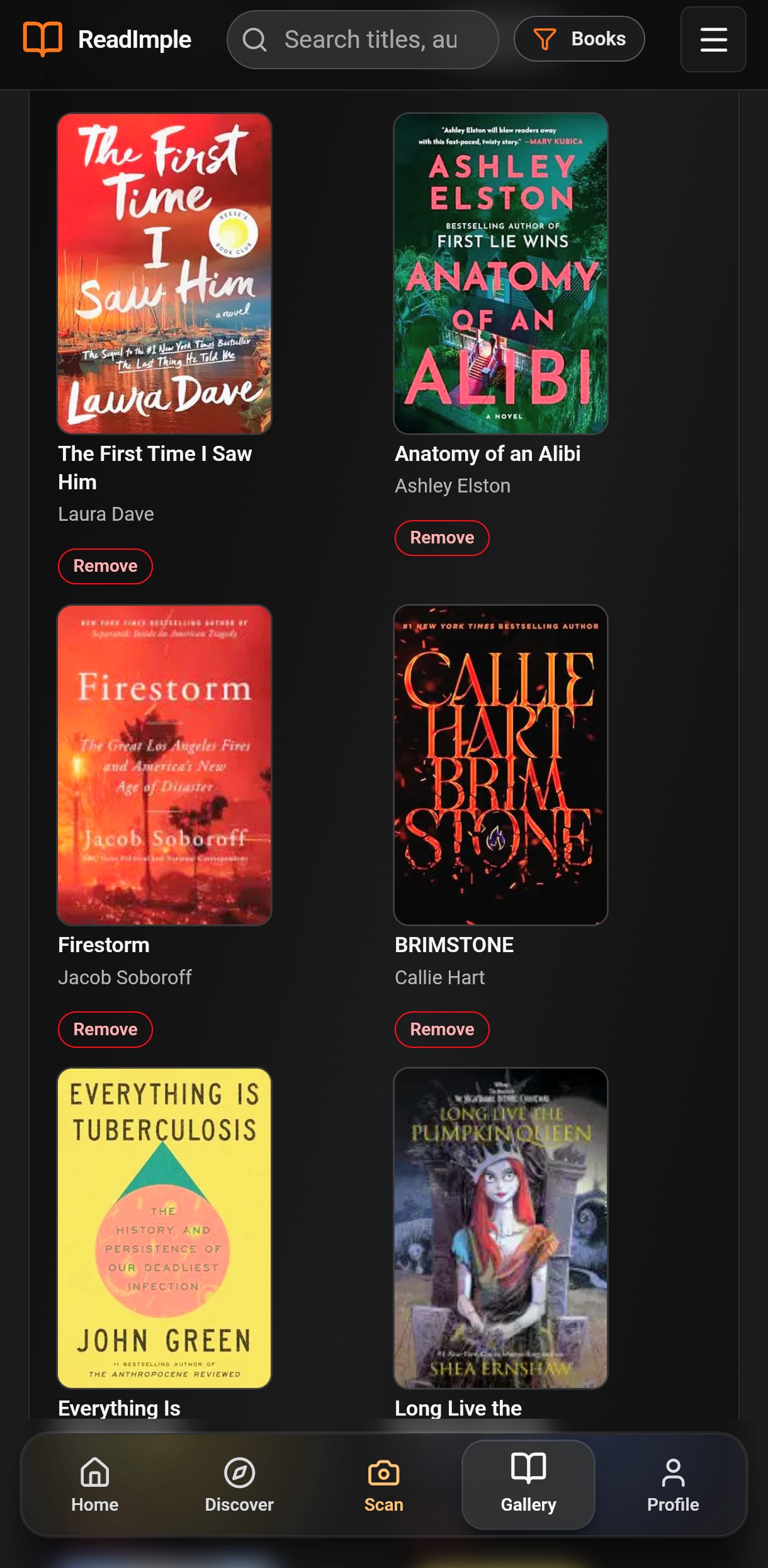
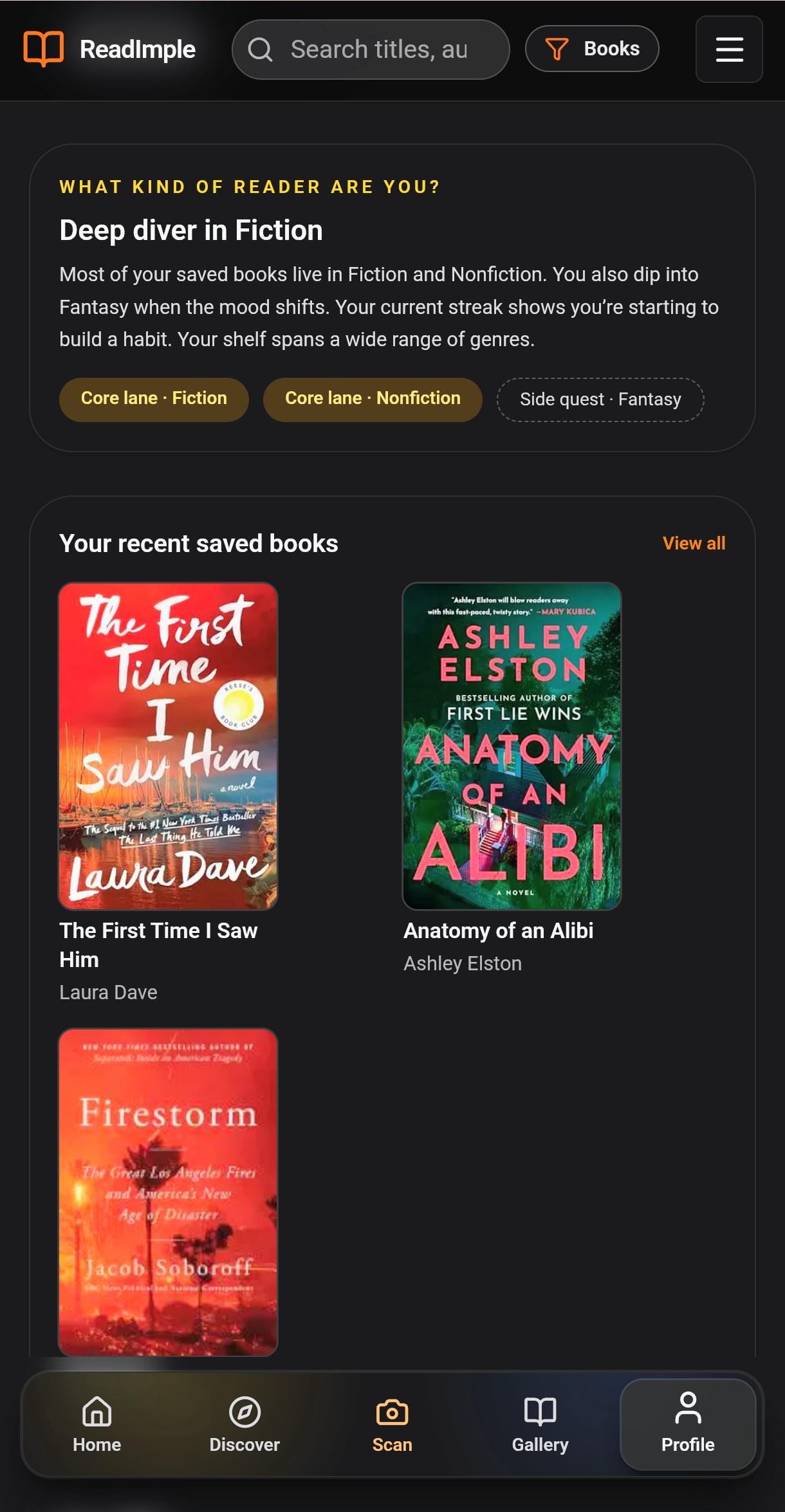
Your saved shelf: keep a tidy list of maybes, next-reads, and favorites.
- Track what you’ve saved
- Re-open picks later
- Build a calm shortlist
Profile
Profile
Make it yours: set genres, manage your account, and keep Home/Discover aligned.
- Pick your genres
- See your activity
- Manage sign-in and credits
Quick tips
Make it feel effortless
ReadImple is designed for “open, decide, move on”. If you ever feel lost, start from Home and follow the lanes.
- Tap a cover to open the book page
- Save first, then decide where to buy
- Use credits only when you want AI help
Compare access
Guest vs Account vs Credits
Public data is always free. AI unlocks only after you choose to spend credits—never automatically.
- Public metadata & vendor links
- Browse Home & Discover lanes
- Basic search & scan entry
- Save books & streak tracking
- Reading stats & shelf sync
- Public descriptions and reviews
- AI Insights (summary, themes, FAQs)
- You tap to spend, nothing runs automatically
Free vs credit actions
You pick when to spend. Everything public stays free.
- Browse, search, scan, save books Free
- Vendor links and cover fetches Free
- AI Insights (summary, themes, FAQs) Credits
- AI recommendations on book pages Credits
Credit usage snapshot
Example mix of where readers spend. You can top up anytime.
Why it feels like home
Consistent rails across Home and Discover
Scroll-first layouts, long lanes, and vendor hand-off you already see in the app.
Public-first
We never trigger AI automatically; you decide when to spend credits.
Fast decisions
Insights designed to be read mid-scroll, not modal walls.
Act immediately
Save to Gallery, open a vendor, or keep swiping lanes.
Vendor links & reviews
Public catalog data from Open Library, Google Books, bestseller charts and vendor links are always free.